Glossary
The glossary defines your organisation's business terms, such as GMV or Active buyer, so everyone means the same thing by them. Terms link to the assets and columns that hold them, which tells people and agents what a table actually means.
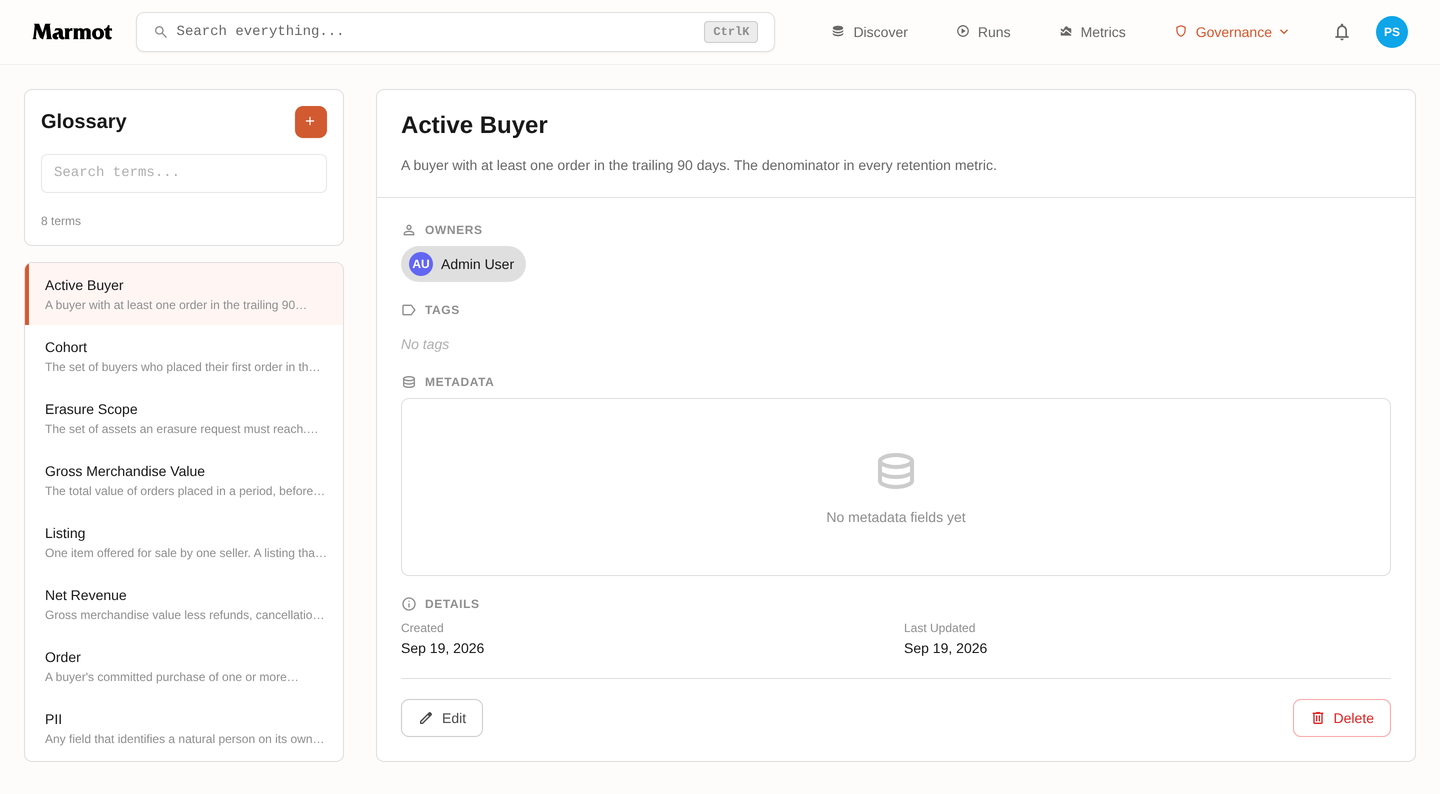
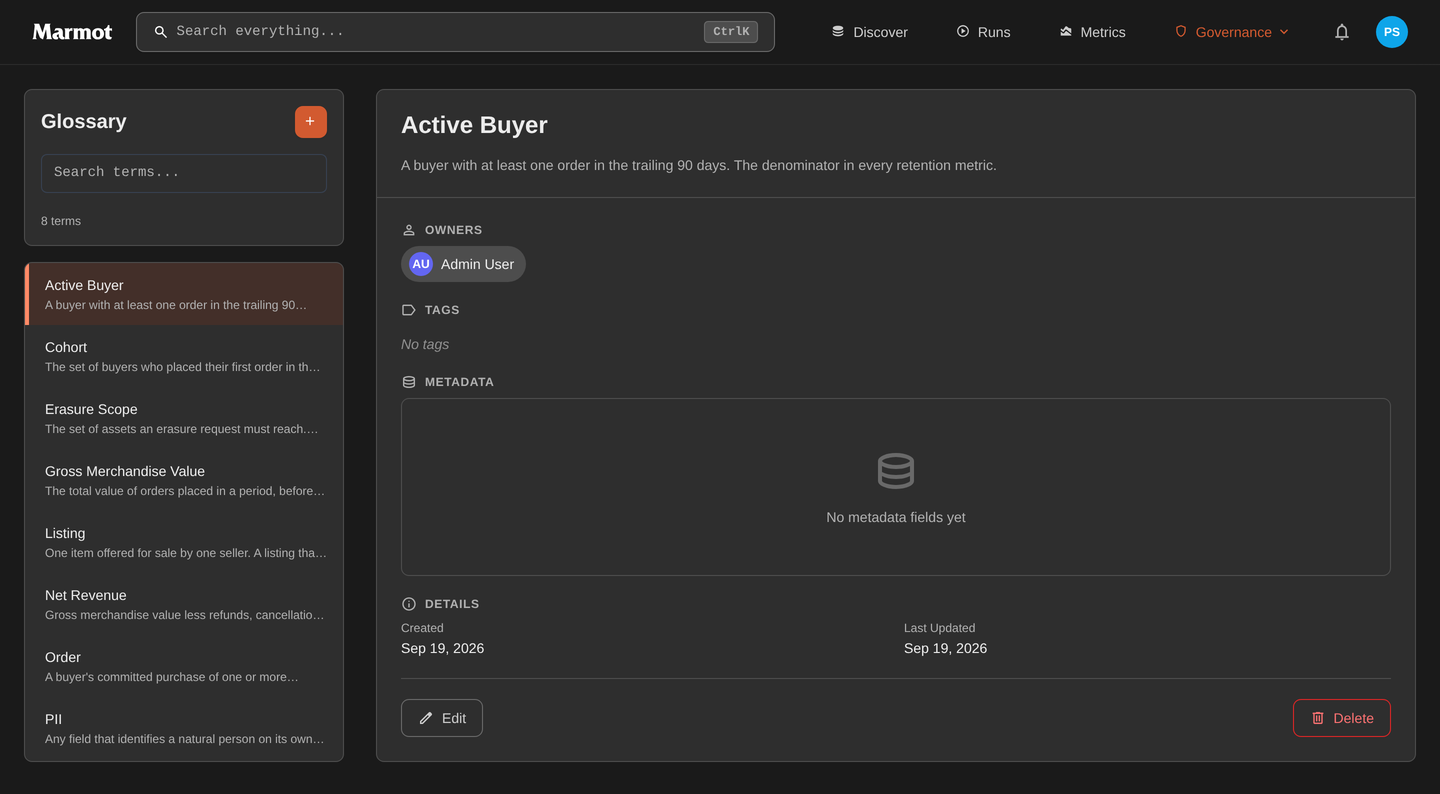
Open Glossary in the sidebar. Terms are listed on the left; each opens with its definition, the assets linked to it and where it sits among other terms:
Create a term
Select Create term and give it a name and a Definition. The definition does the work, so write it as the answer to "what exactly counts as this". "An order exists from the moment payment is authorised; a cart isn't an order" settles arguments; "an order is a purchase" doesn't.
The same form places the term among others:
- Parent term nests it under a broader one, which keeps a growing vocabulary navigable: Order with GMV and Net revenue underneath, or PII with Erasure request. On Marmot Cloud, a role granted on a term also reaches every term nested under it.
- Related terms links terms that sit beside each other, such as GMV and Take rate, without one owning the other.
Link terms to assets
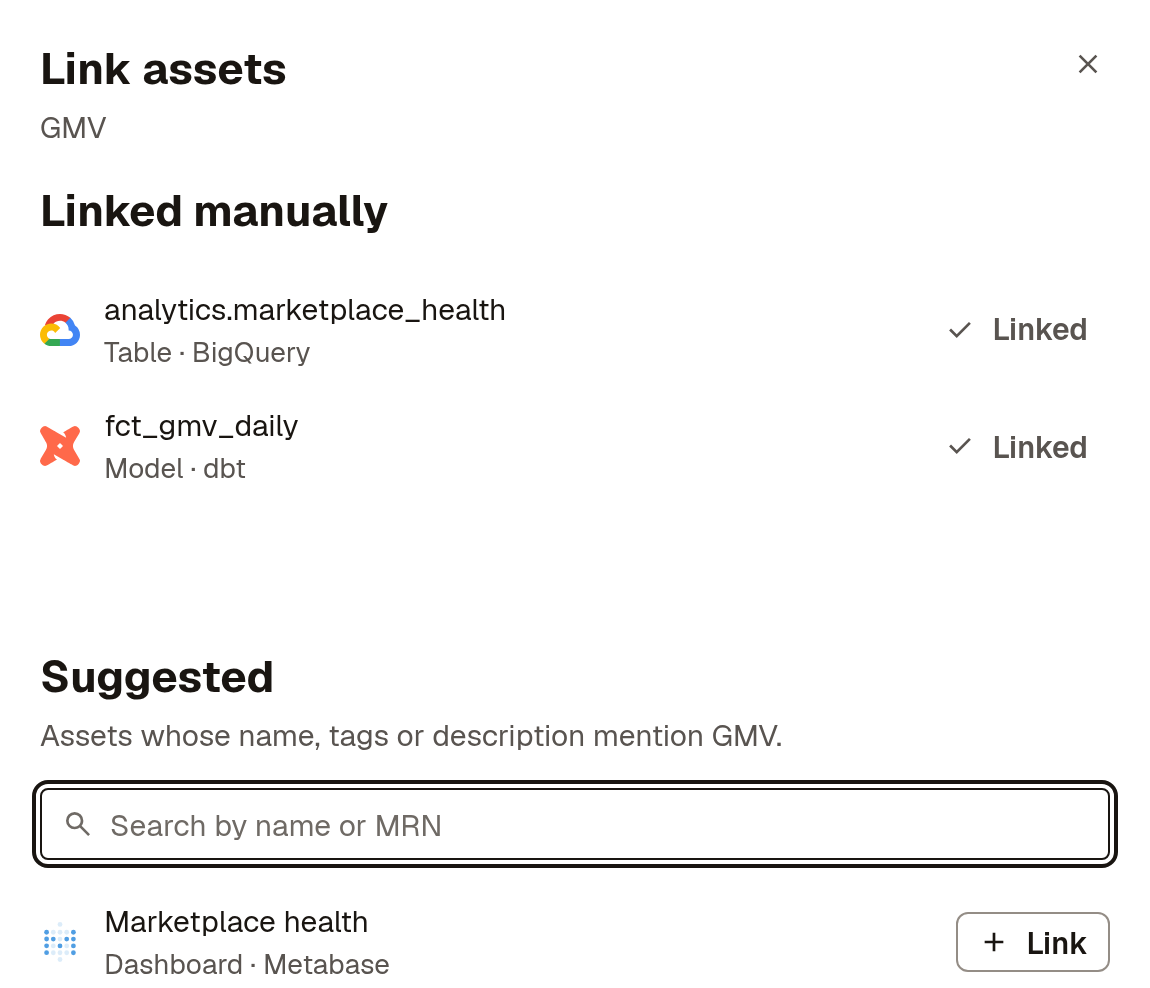
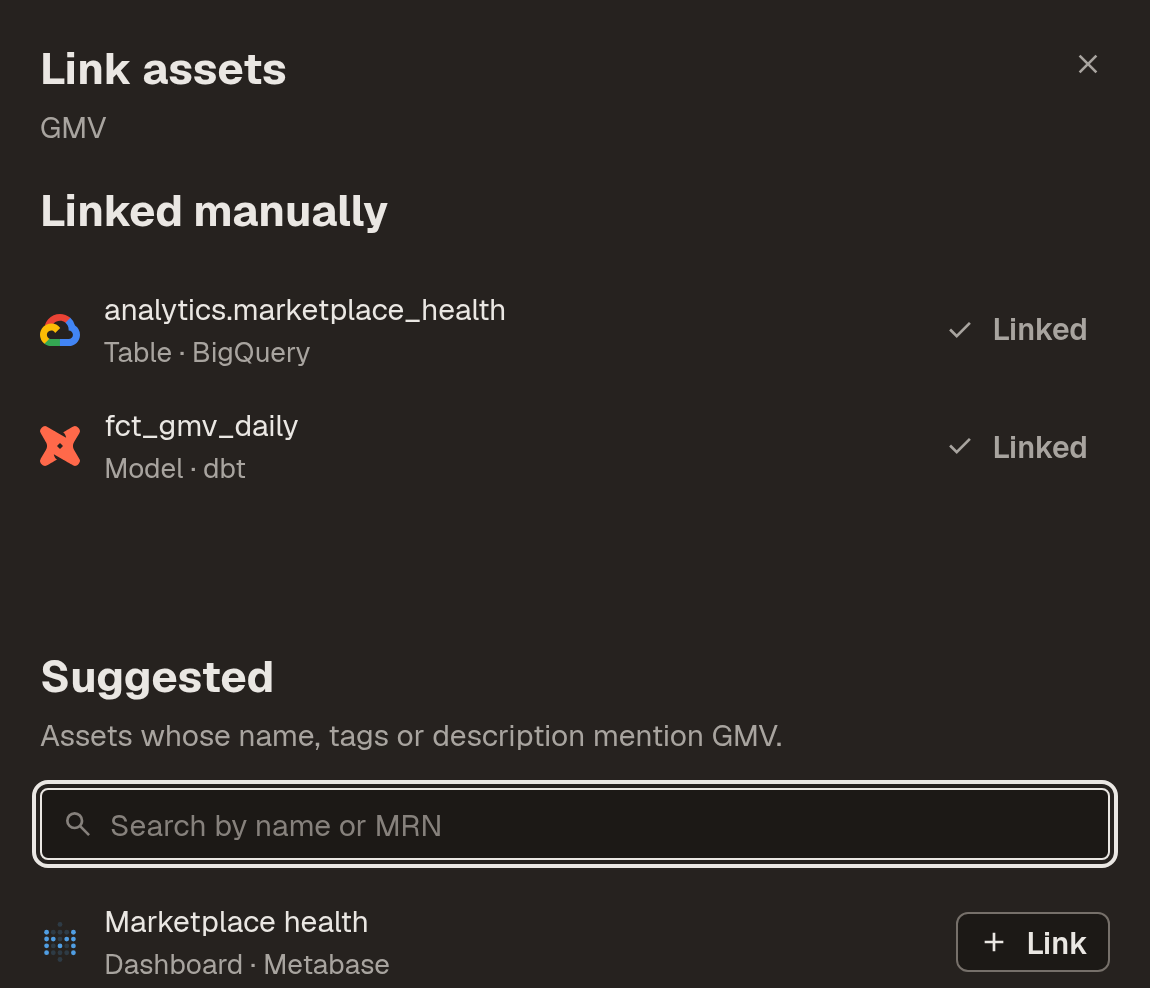
On a term, select Link assets. Suggested lists assets whose name, tags or description mention the term, so the obvious matches are a click away; search to find anything else:
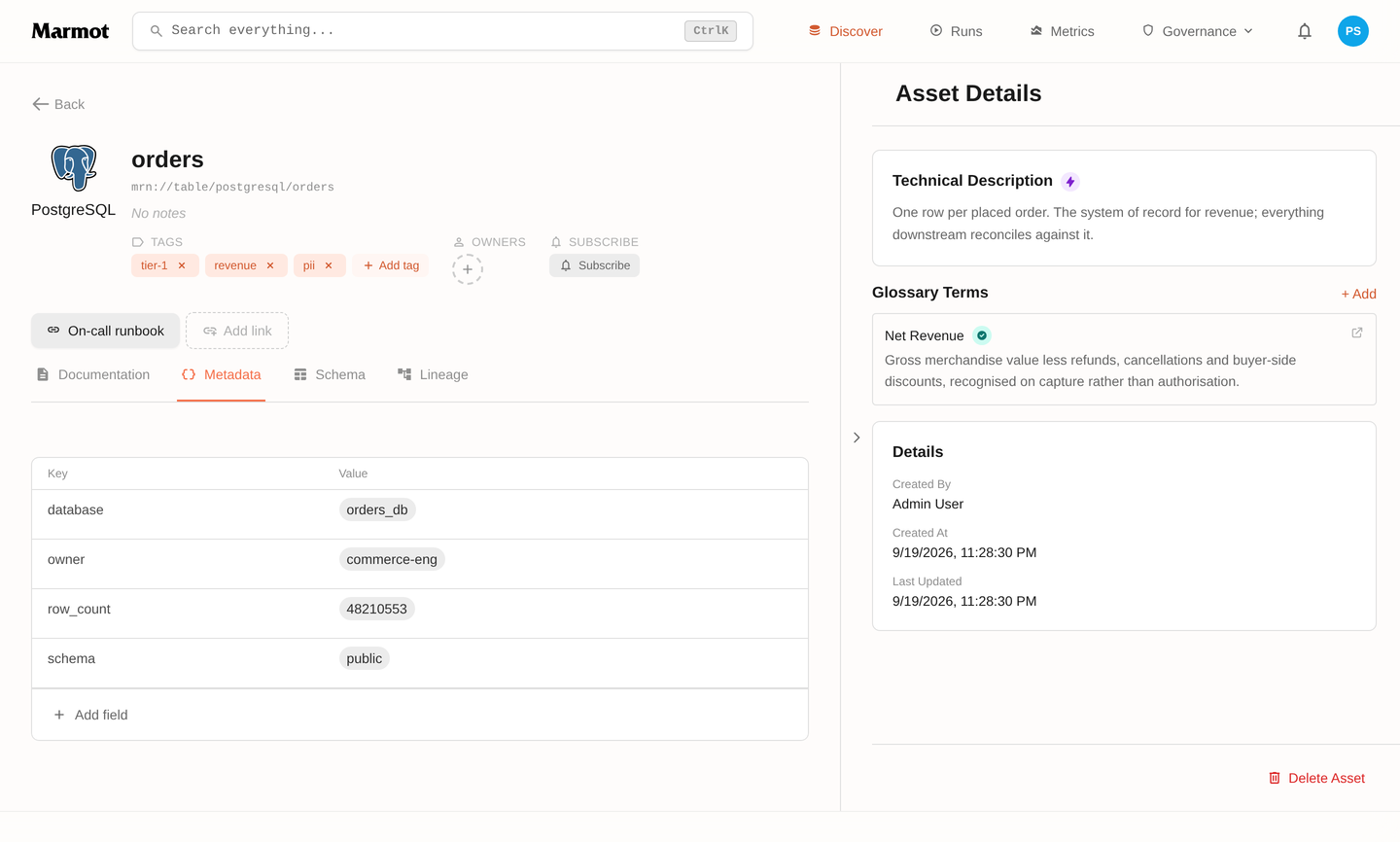
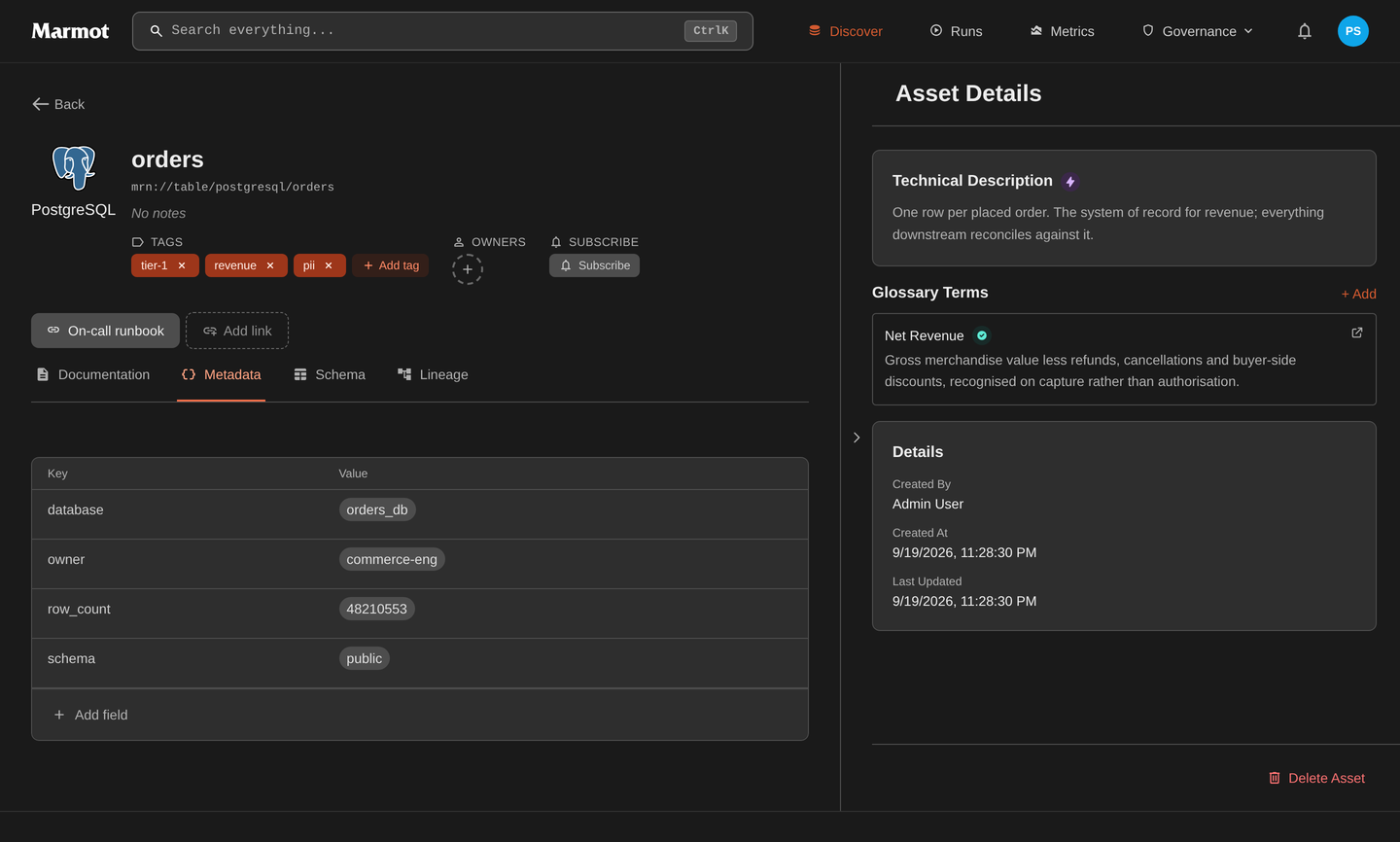
From an asset's page, add a term under What it means in the panel beside it:
Link terms to columns
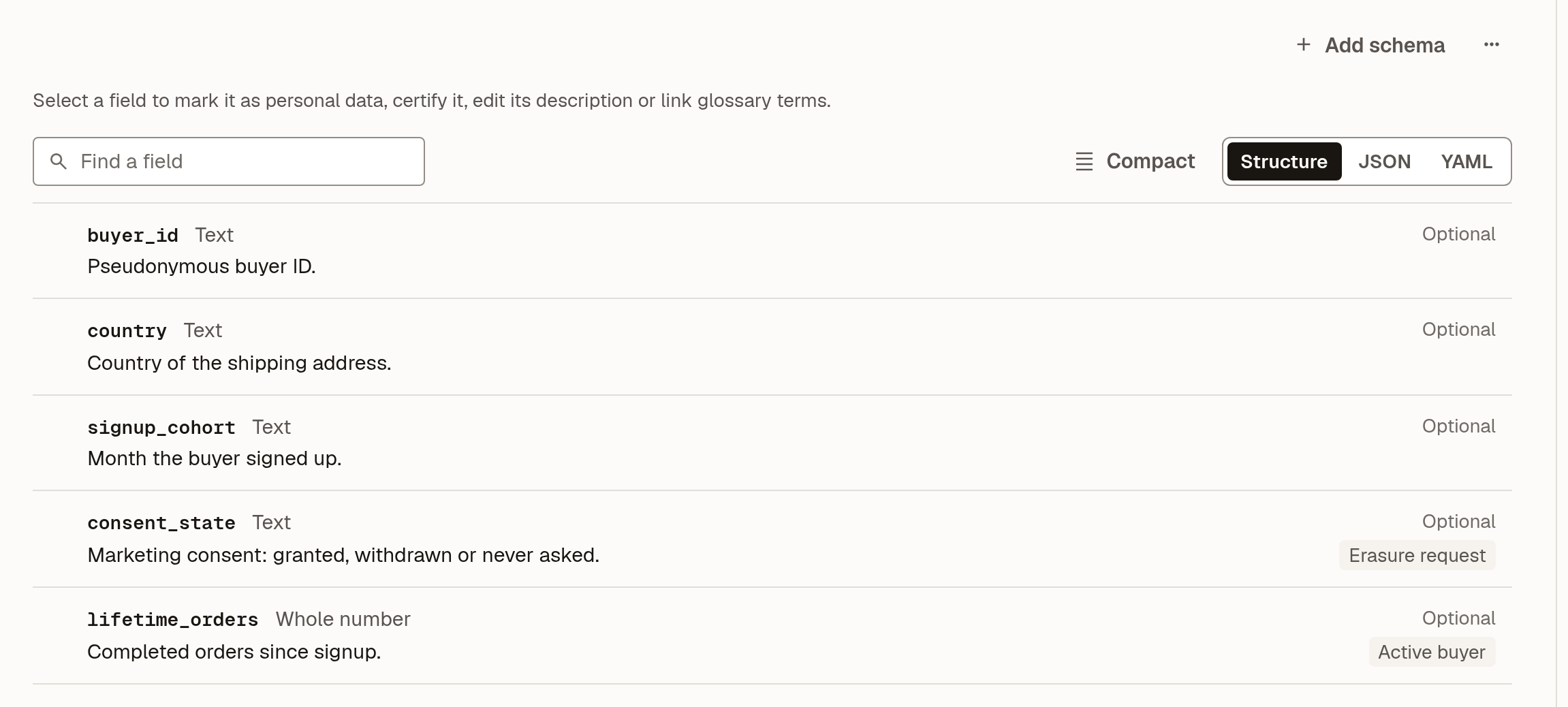
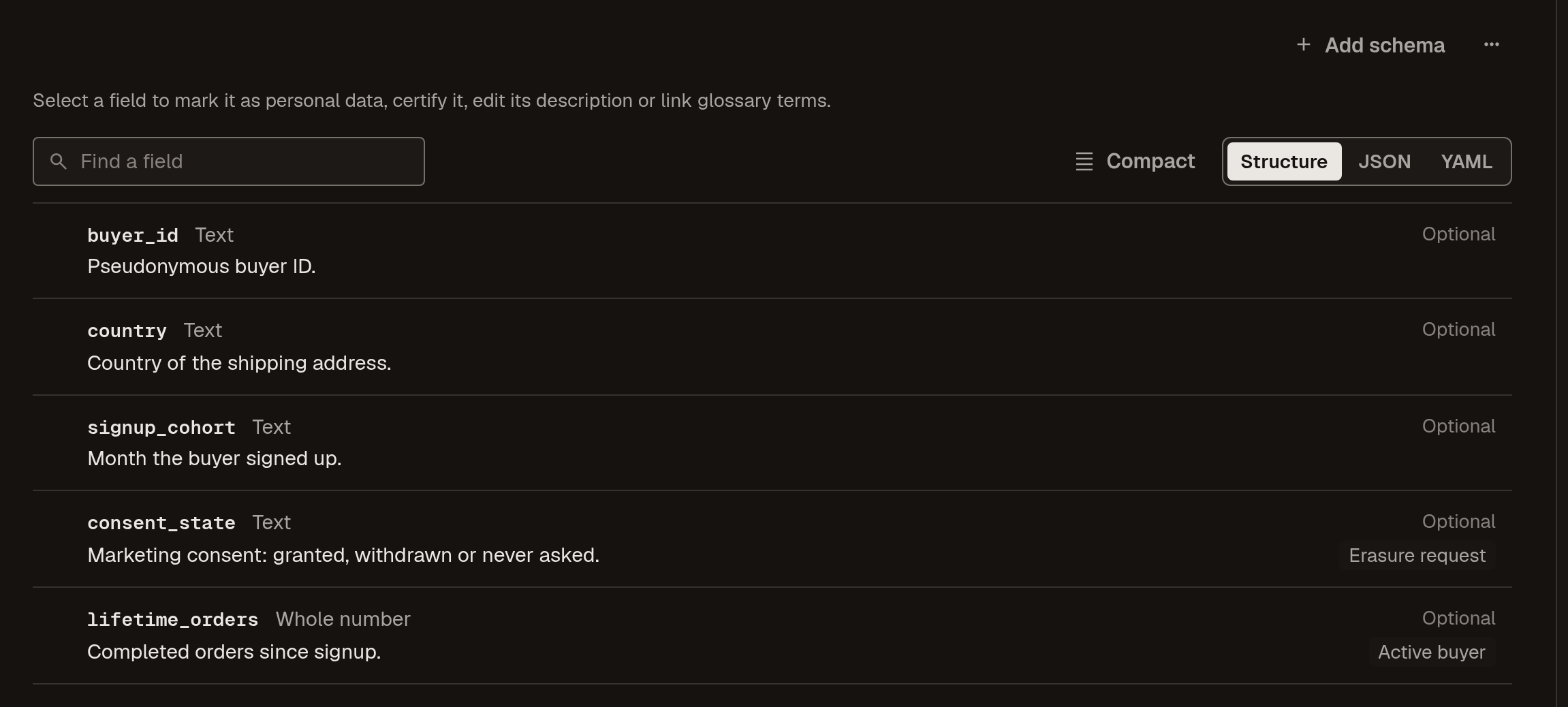
A term can also describe one column. On an asset's Schema tab, select a field, then Glossary terms to link one; the term then shows beside the column:
Link terms automatically
Linking by hand doesn't keep up with a growing catalog. An asset rule links a term to every asset that matches a query and keeps doing it as new assets arrive, so "every table in the revenue mart carries Net revenue" stays true without anyone maintaining it. Terms can also be declared in Terraform with marmot_glossary_term, which suits a vocabulary a governance group reviews.
Find terms
Terms are searchable alongside everything else. The Glossary terms filter on Discover narrows results to terms, and @kind: "glossary" does the same in the query language.
Next steps
- Asset rules: link terms to matching assets automatically.
- Data products: group the assets a term describes.