Asset Rules
Asset Rules automatically apply enrichments to assets matching specific criteria. Define a rule once and Marmot keeps everything in sync as your Catalog changes, including new assets that match.
Creating a Rule
Navigate to Asset Rules under Governance in the header and click Create Rule. The creation flow has three steps.
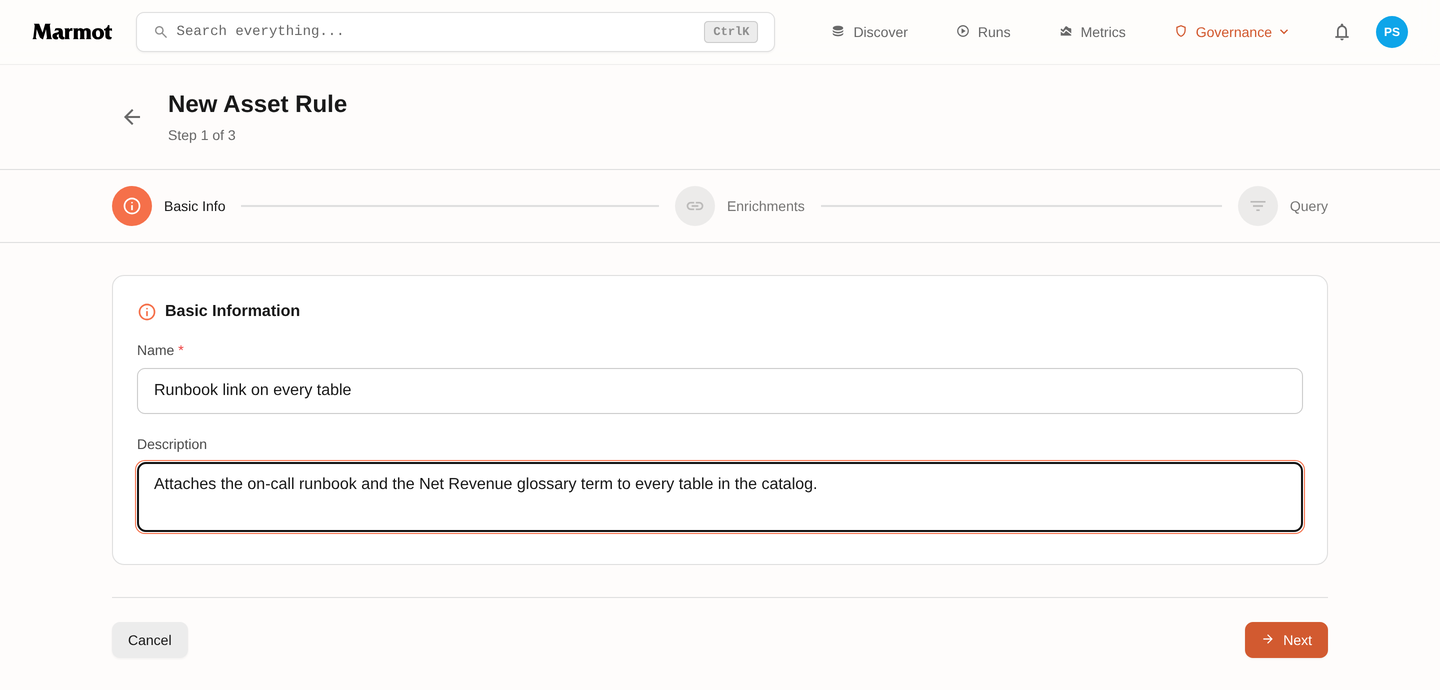
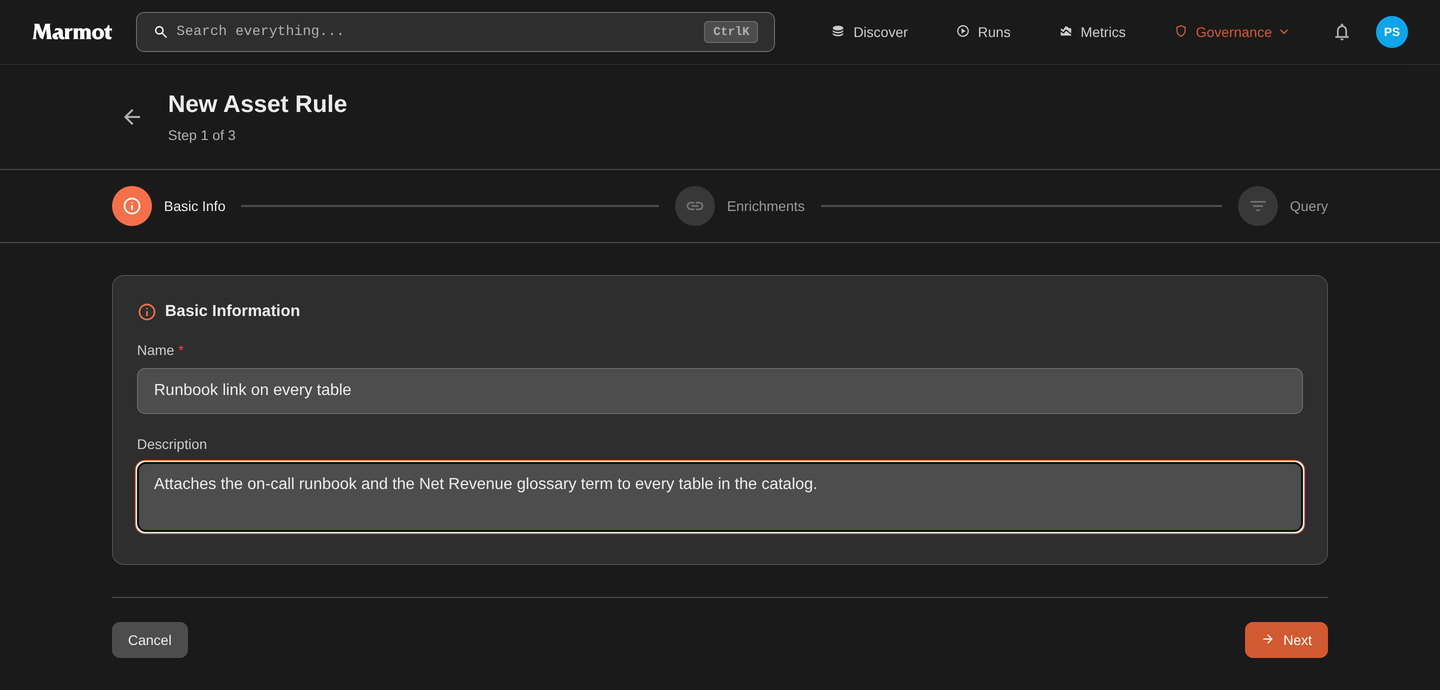
Basic Information
Give your rule a unique name and an optional description.
Enrichments
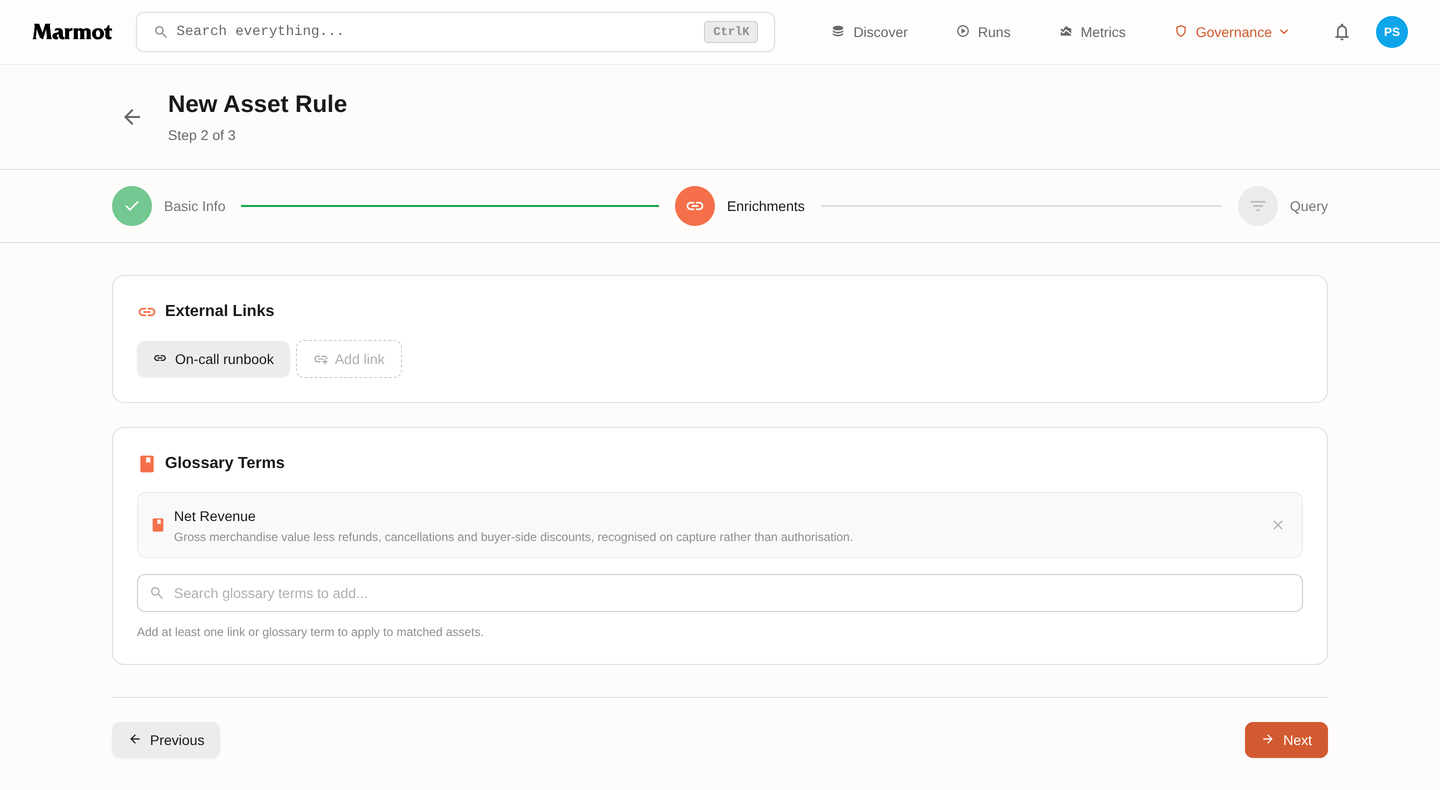
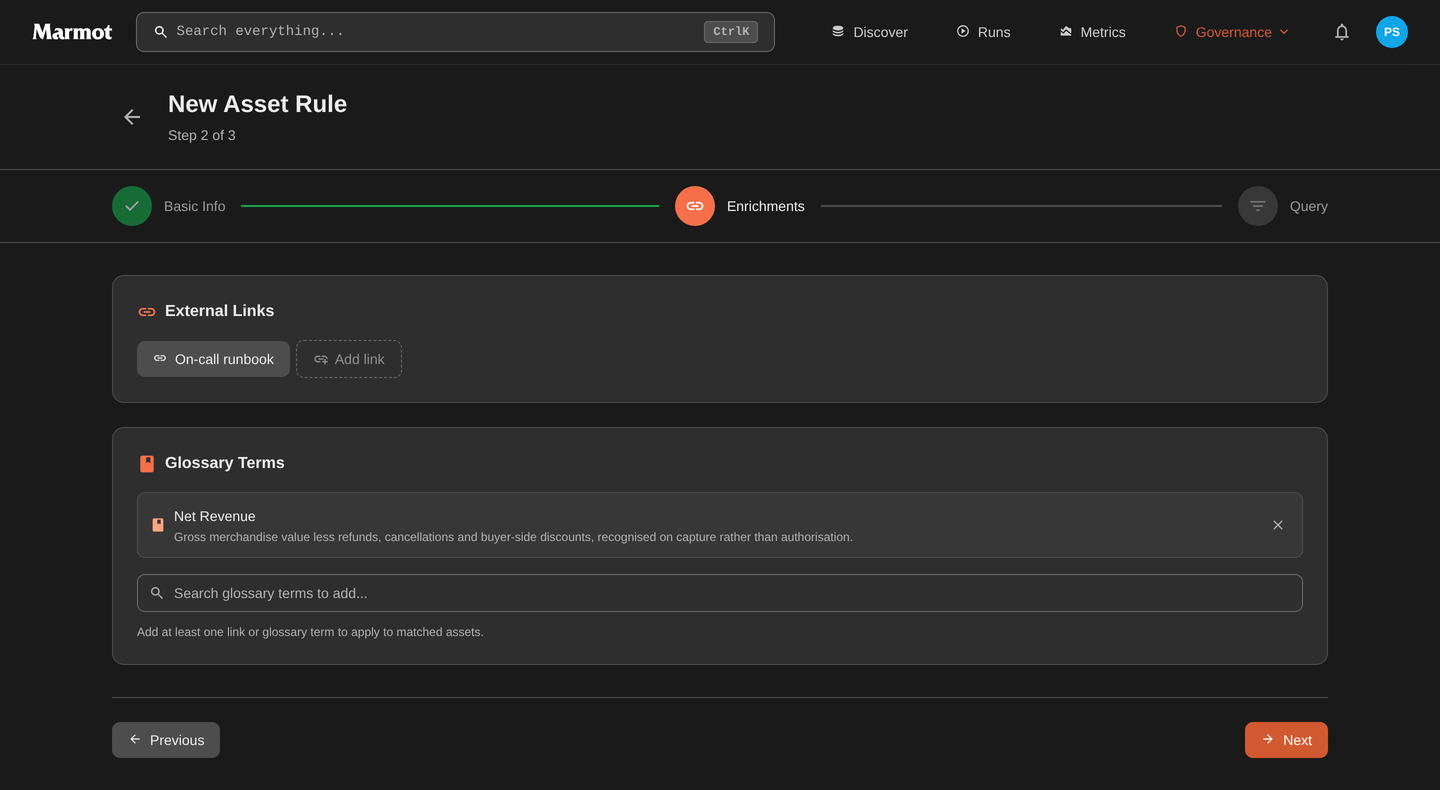
Choose what to apply to matching assets. A rule must include at least one of:
- External links: runbooks, dashboards, wiki pages or monitoring URLs. Each link has a name, URL and optional icon.
- Glossary terms: select one or more terms from your existing glossary to associate with matching assets.
Query
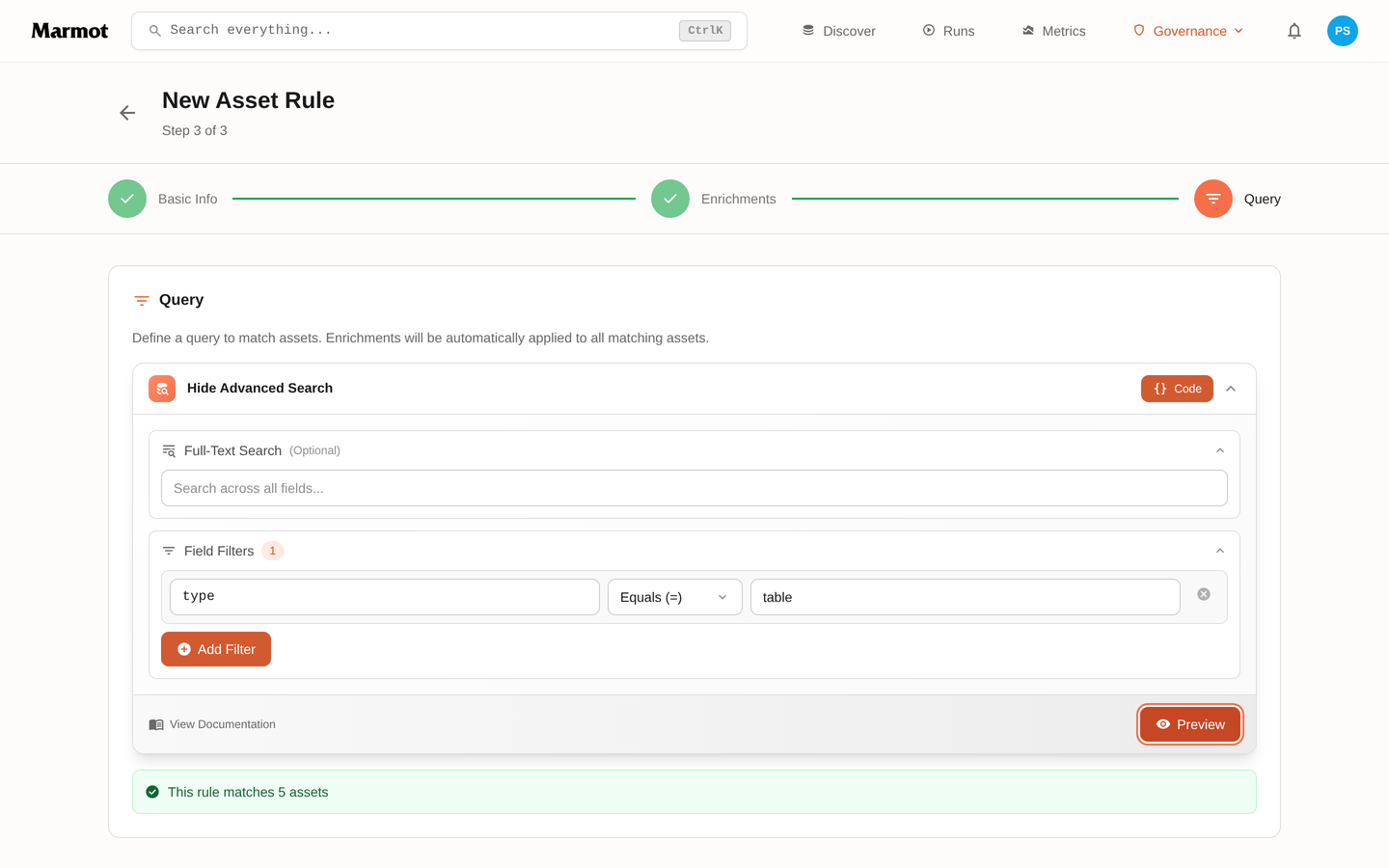
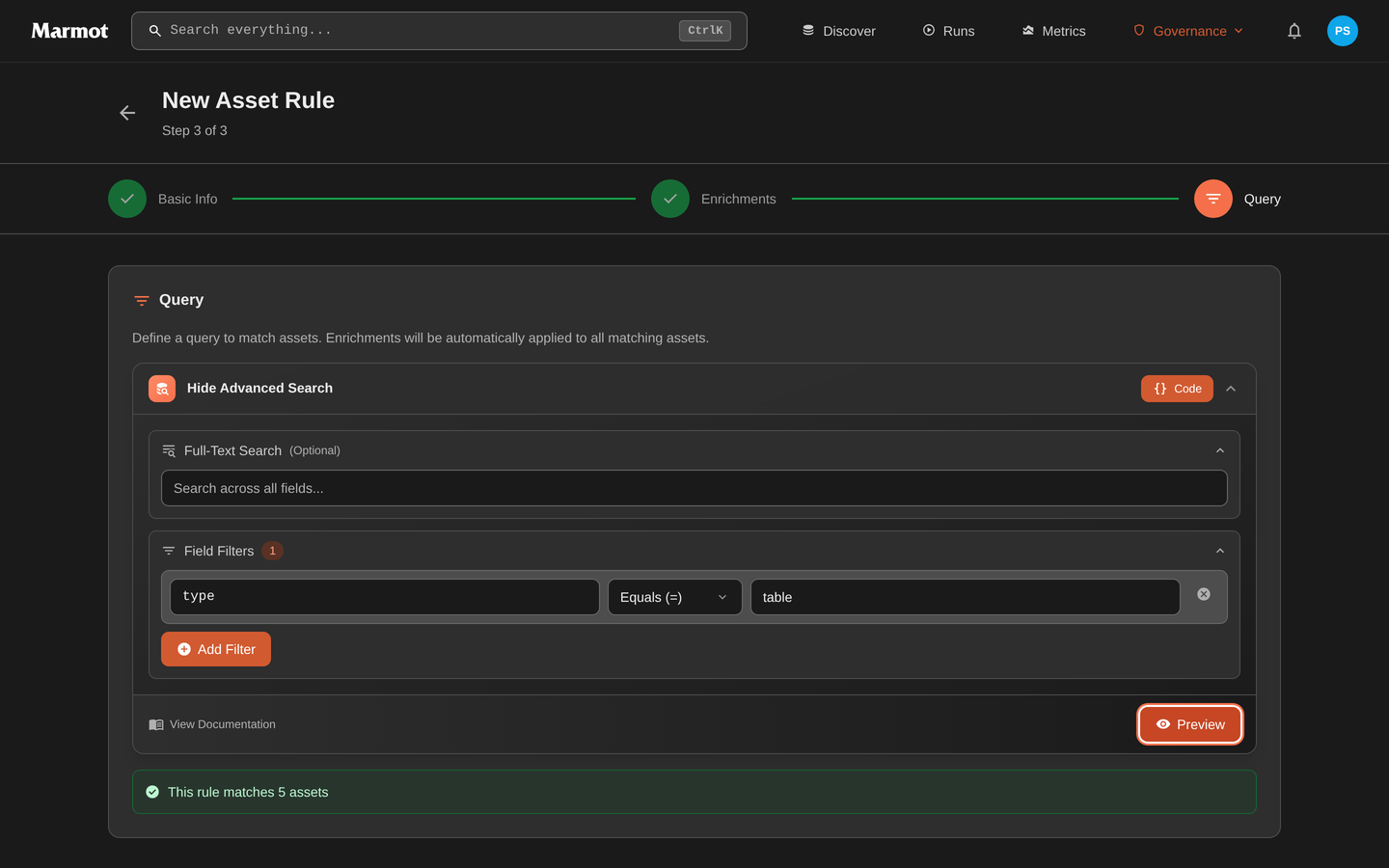
Define which assets the rule should match using Marmot's query language (the same syntax used in search). For example:
@type: "table"matches every table in the catalog@provider: "PostgreSQL"matches everything discovered from PostgreSQL@metadata.owner: "platform-team"matches assets whoseownermetadata field names that team
The fields are the ones the query language supports: @type, @provider, @name, @kind and @metadata.*. Values are matched as stored, so use the provider name exactly as it appears in the catalog.
Use the Preview button to see which assets currently match before saving.
How Rules Are Applied
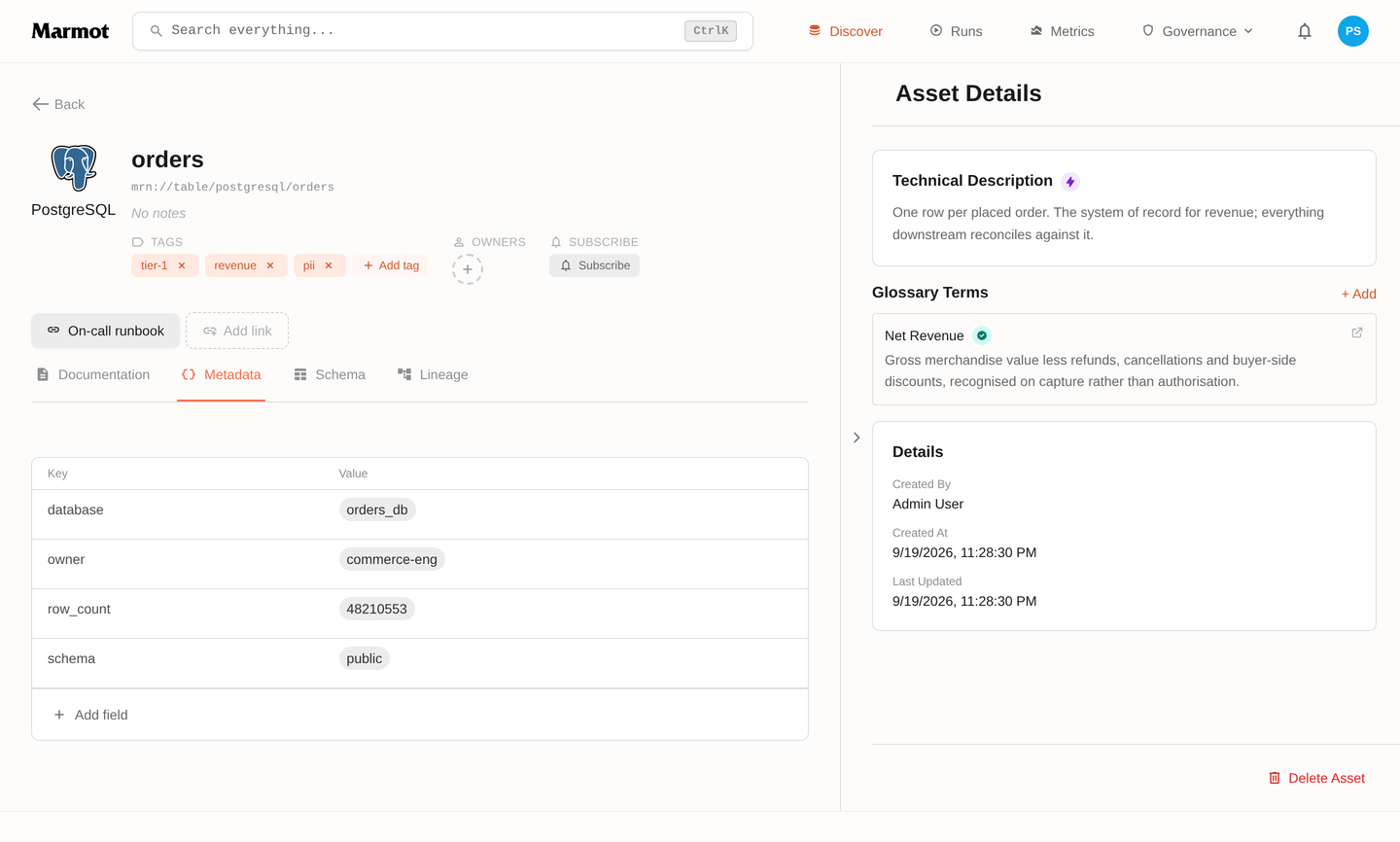
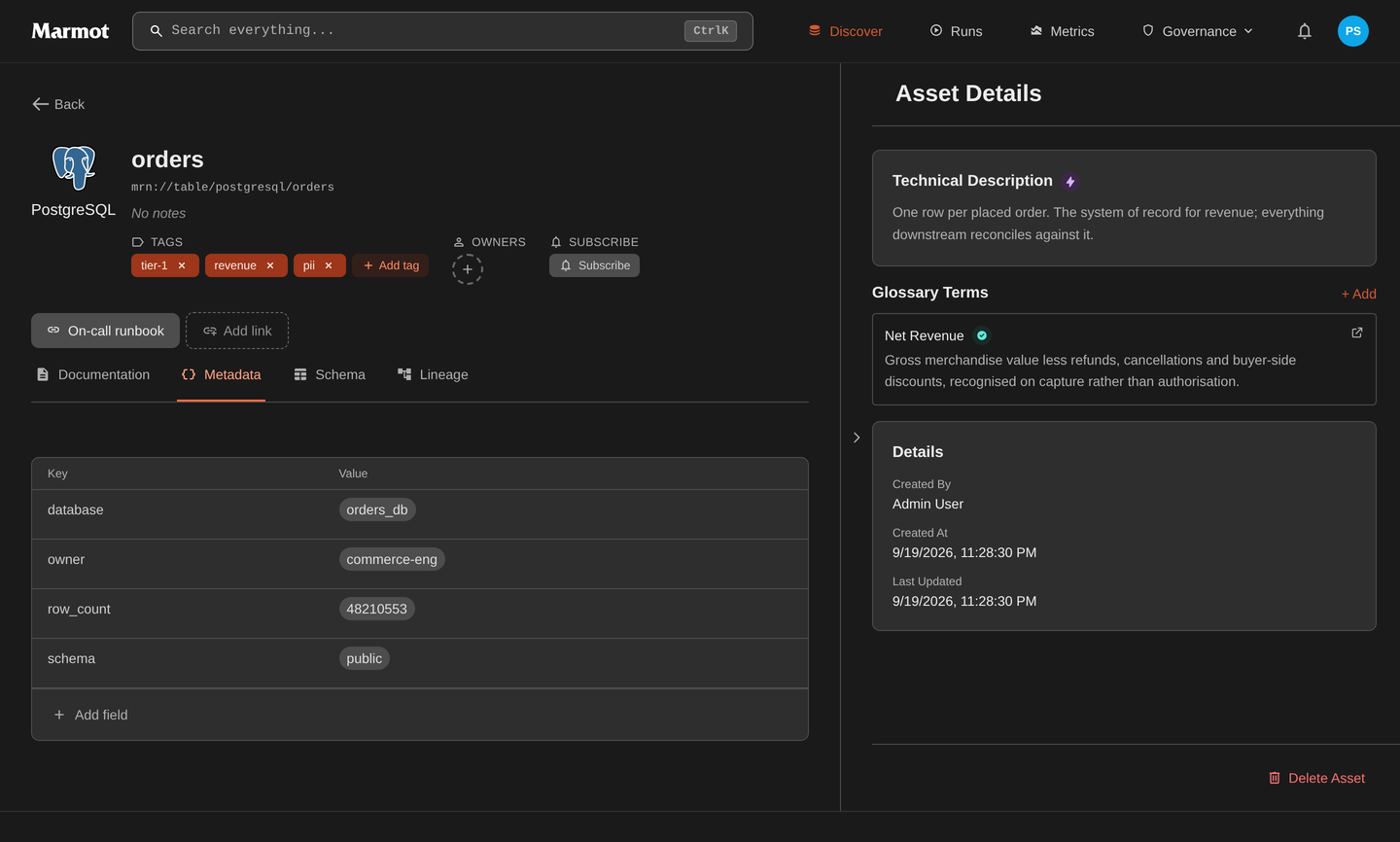
Once a rule matches, its enrichments show up on the asset itself: external links beside the title, glossary terms in the sidebar.
Rules are evaluated every 30 minutes by default and whenever a new asset is added to the Catalog. Only rules whose configuration or matching assets have changed are re-evaluated. When multiple rules match the same asset, all enrichments are applied.
Rules can be enabled or disabled at any time. Disabled rules retain their configuration so you can re-enable them later.
Managing Rules
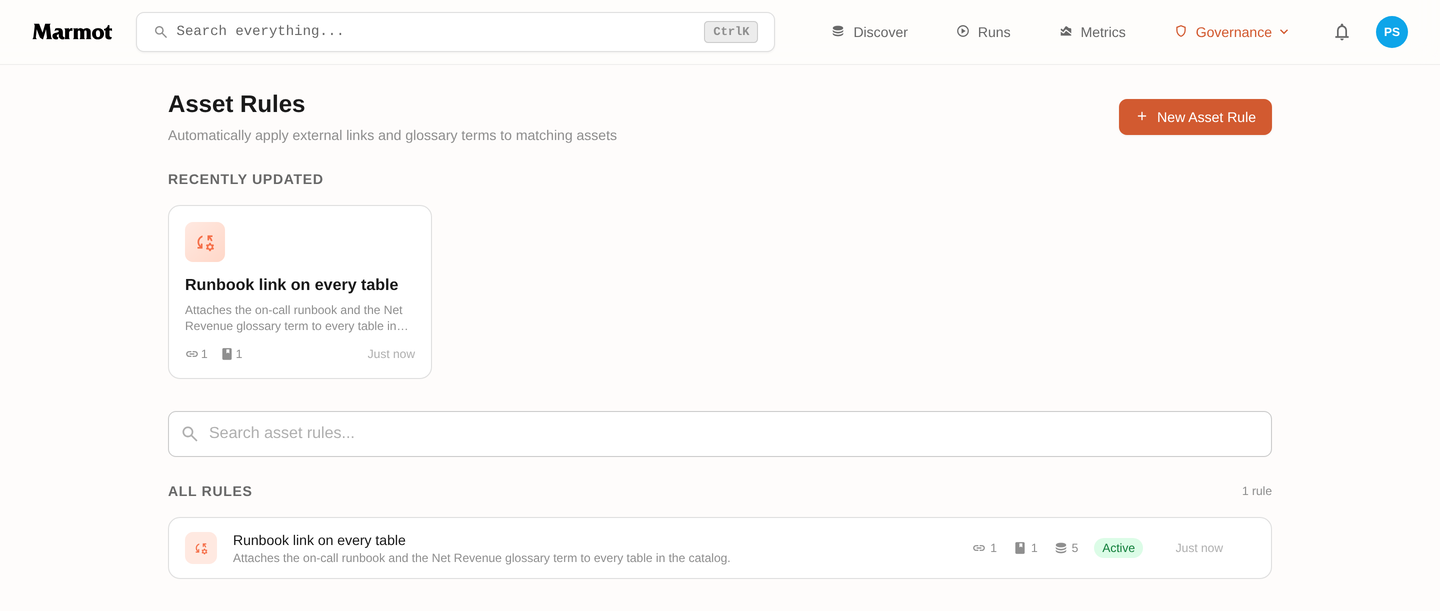
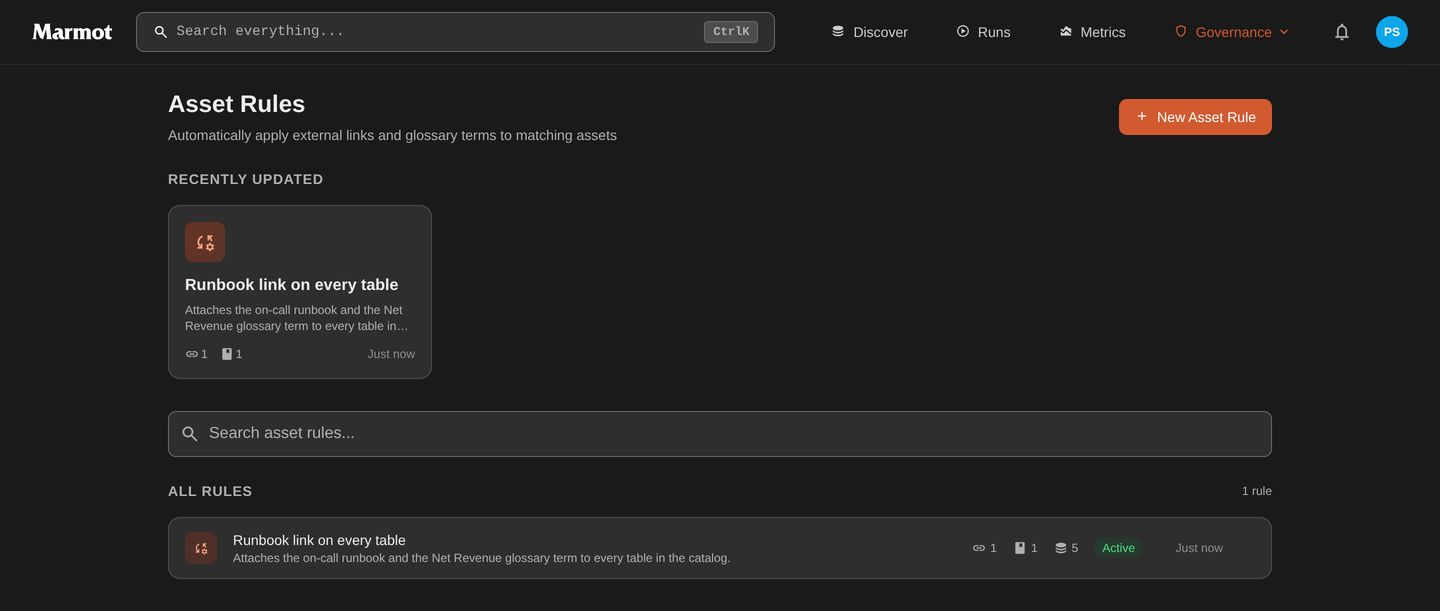
The Asset Rules page lists all rules with their match count, number of links and terms, enabled status and last updated time. Click any rule to view its configuration or see matched assets.
Rules can be edited, enabled, disabled or deleted from the detail page. Changes take effect on the next reconciliation cycle, or you can trigger an immediate evaluation by updating the rule.
Need Help?
Join the Discord community to ask questions and share how you're using Asset Rules.
Join Discord