Webhooks
Send your team's asset notifications to external services. Each webhook is scoped to a team and can be configured to forward specific notification types.
Supported Providers
Slack
Rich formatted messages to any Slack channel via incoming webhooks
Discord
Embedded notifications to Discord channels via webhook URLs
Generic HTTP
JSON payloads to any HTTP endpoint for custom integrations
Setup
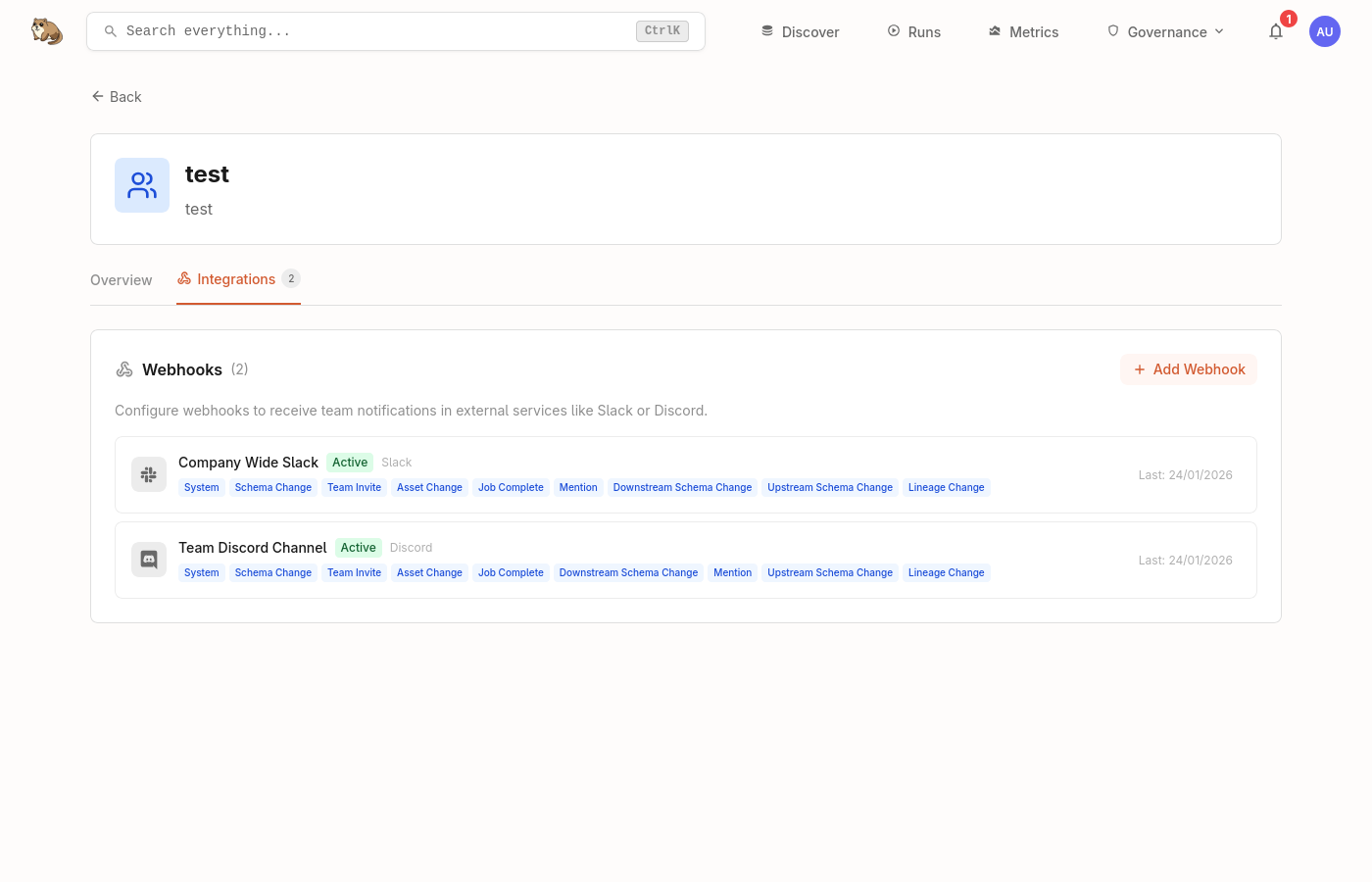
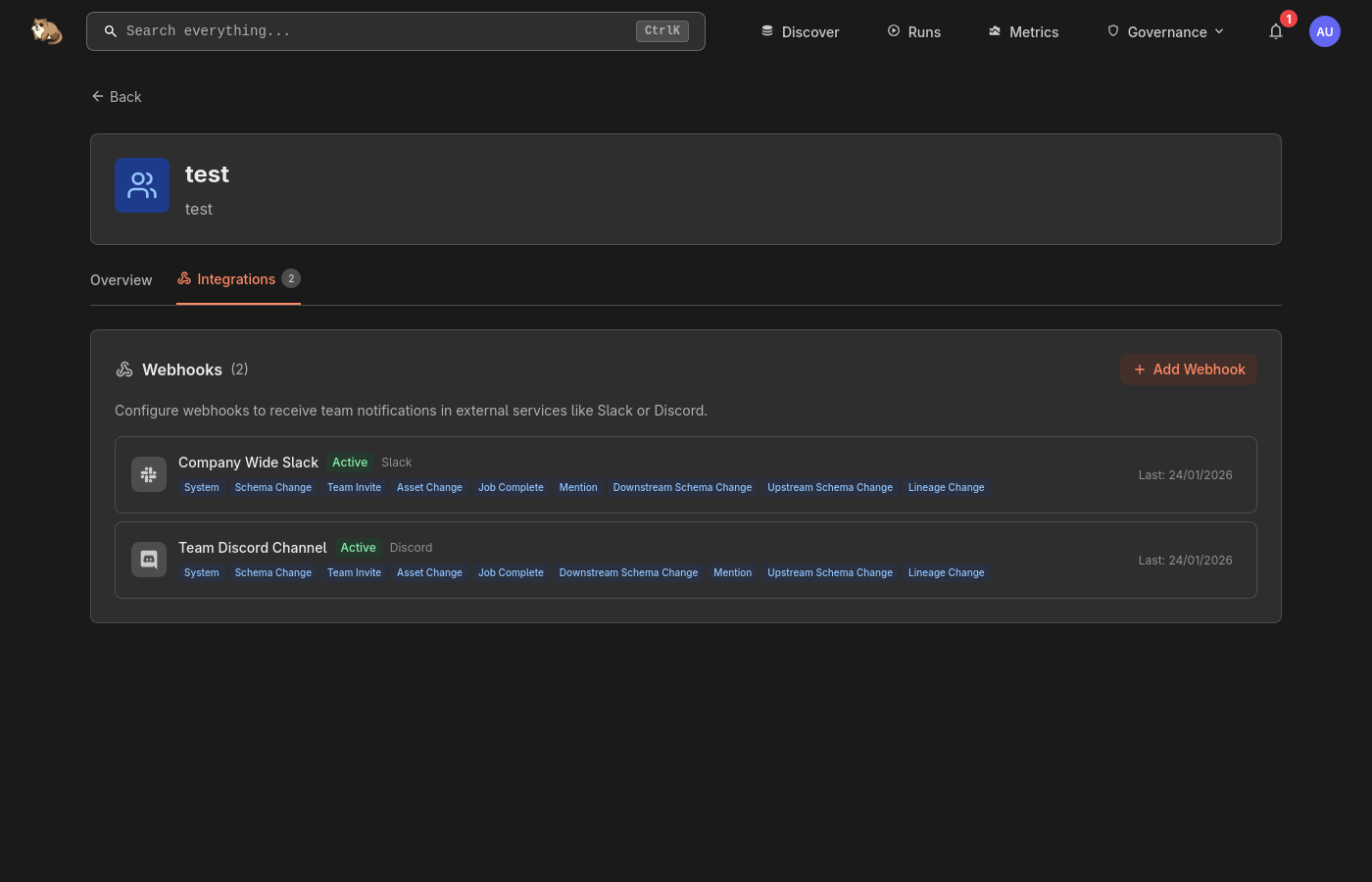
Navigate to Team Settings
Open your team page and find the Webhooks section.
Create a Webhook
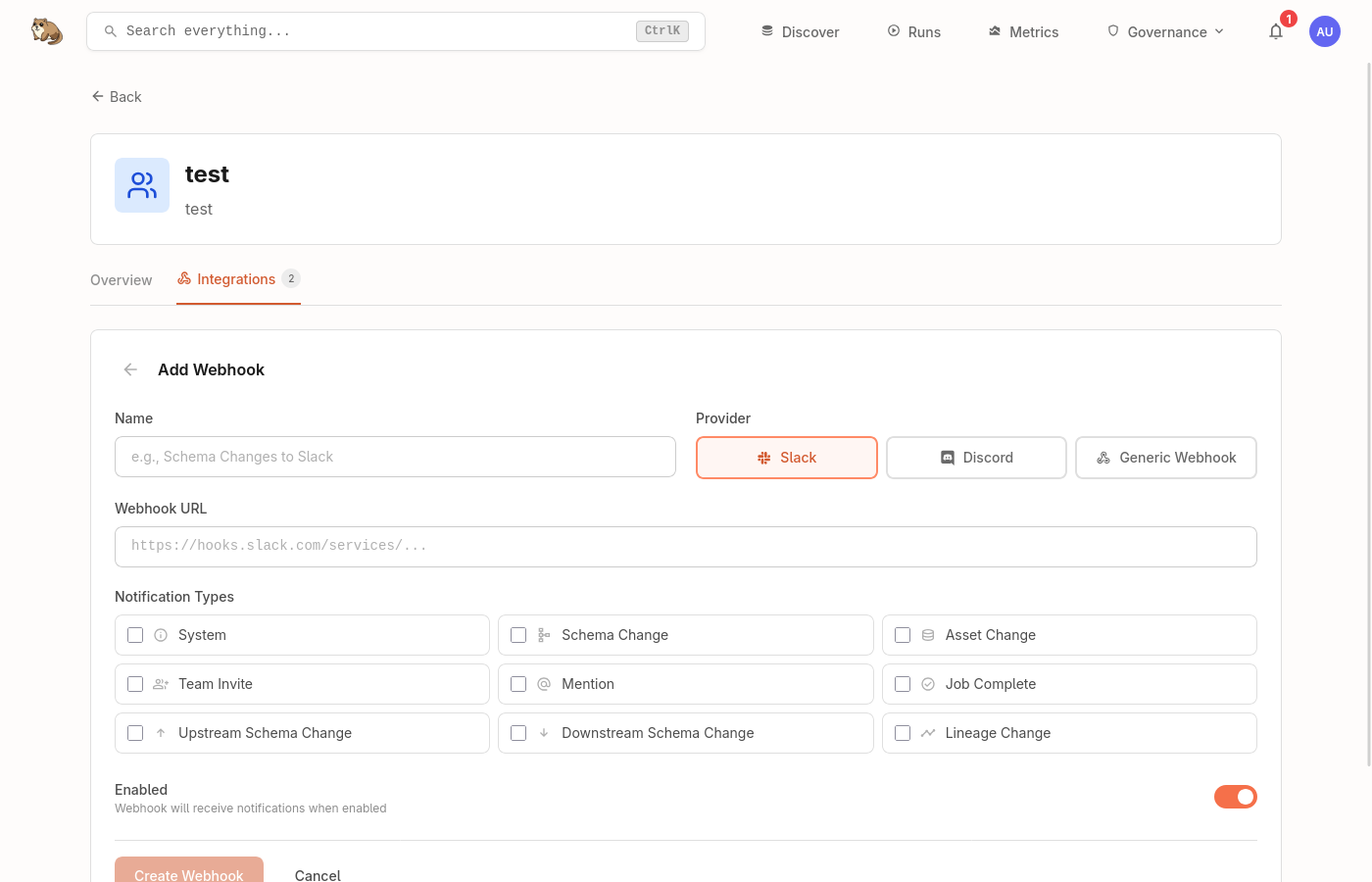
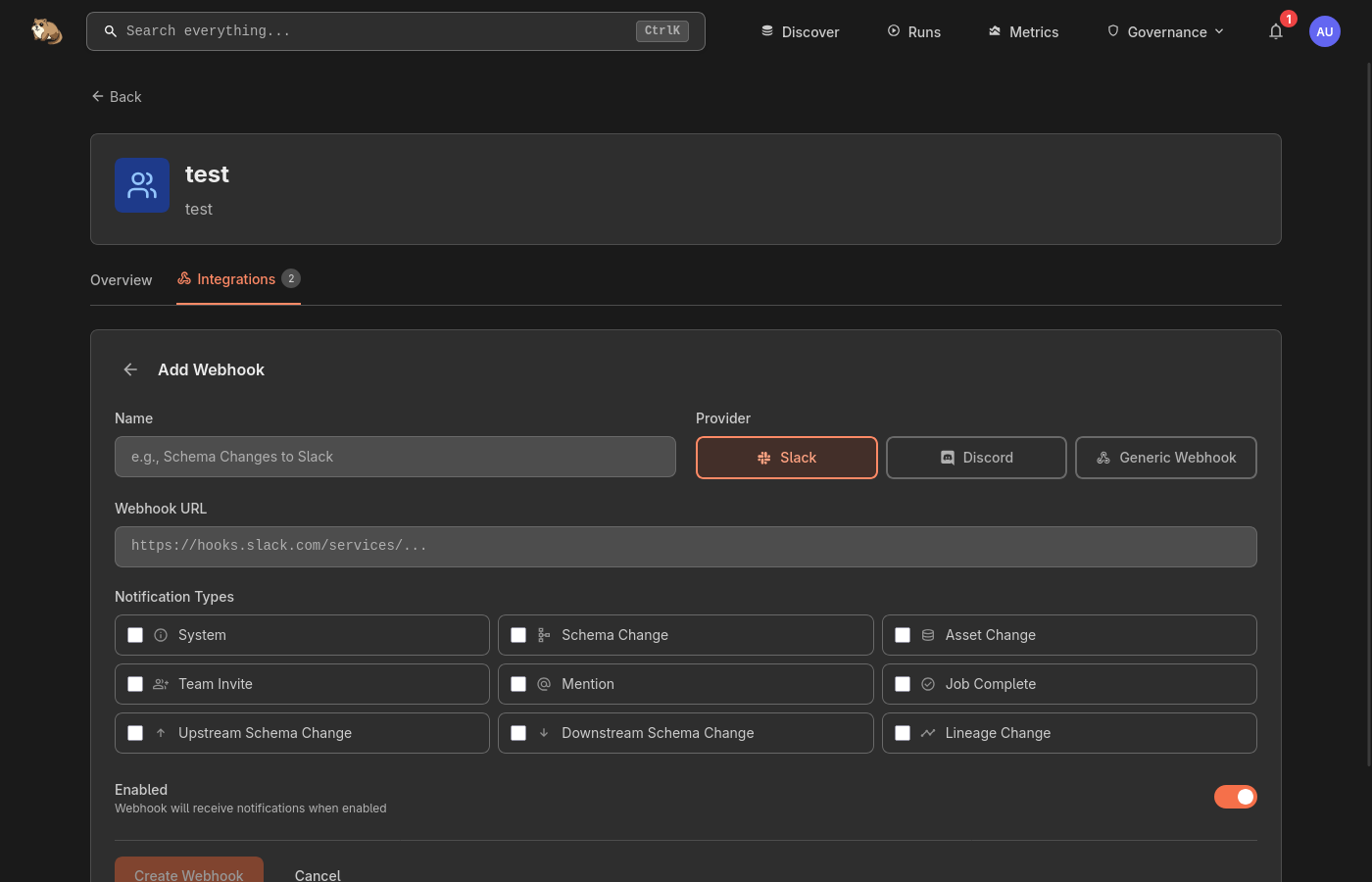
Click Add Webhook and fill in the details:
- Name — a descriptive label (e.g. "Schema alerts to #data-eng")
- Provider — choose Slack, Discord, or Generic
- Webhook URL — the incoming webhook URL from your provider
- Notification Types — select which types to forward
Test the Webhook
Click Send Test to verify the webhook is configured correctly. A sample notification will be delivered to your endpoint.
Provider Details
Slack
Create an incoming webhook in your Slack workspace:
- Go to Slack Apps and create or select an app
- Enable Incoming Webhooks and add a new webhook to your channel
- Copy the webhook URL (starts with
https://hooks.slack.com/)
Messages are formatted with rich blocks showing the notification type, affected asset, and a link back to Marmot.
Discord
Create a webhook in your Discord server:
- Open Server Settings > Integrations > Webhooks
- Click New Webhook and select the target channel
- Copy the webhook URL (starts with
https://discord.com/api/webhooks/)
Notifications are delivered as embedded messages with colour-coded types.
Generic HTTP
For custom integrations, the generic provider sends a JSON POST to any HTTPS endpoint:
{
  "type": "schema_change",
  "title": "Schema changed on users_table",
  "message": "Column 'email' type changed from VARCHAR to TEXT",
  "asset_mrn": "postgres://prod/public/users_table",
  "team_id": "d4e5f6...",
  "timestamp": "2025-01-23T10:30:00Z"
}