Webhooks
Send your team's asset notifications to external services. Each webhook is scoped to a team and can be configured to forward specific notification types.
Supported Providers
- SlackRich formatted messages to any Slack channel via incoming webhooks
- DiscordEmbedded notifications to Discord channels via webhook URLs
- Generic HTTPJSON payloads to any HTTP endpoint for custom integrations
Setup
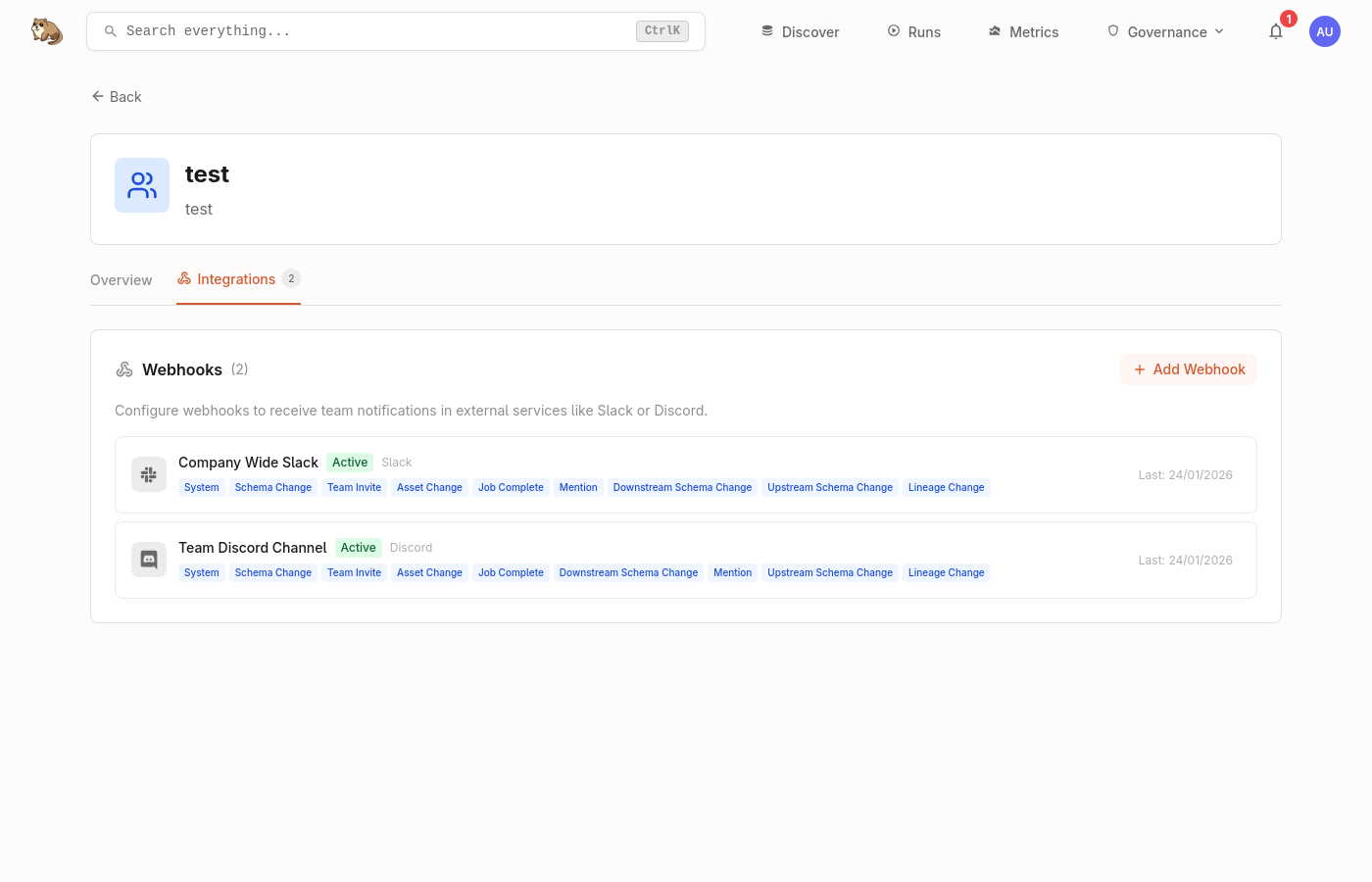
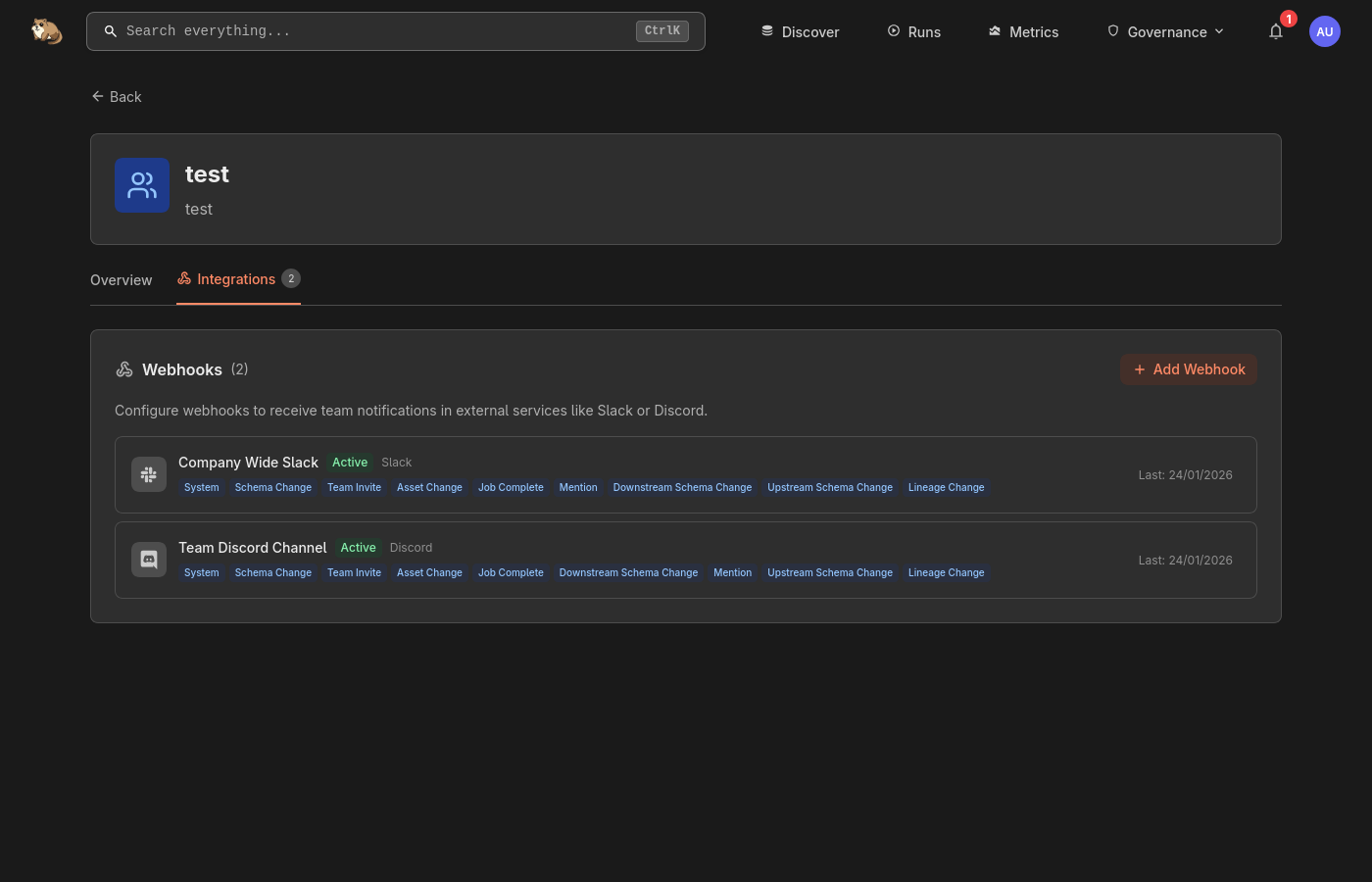
Navigate to Team Settings
Open your team page and find the Webhooks section.
Create a Webhook
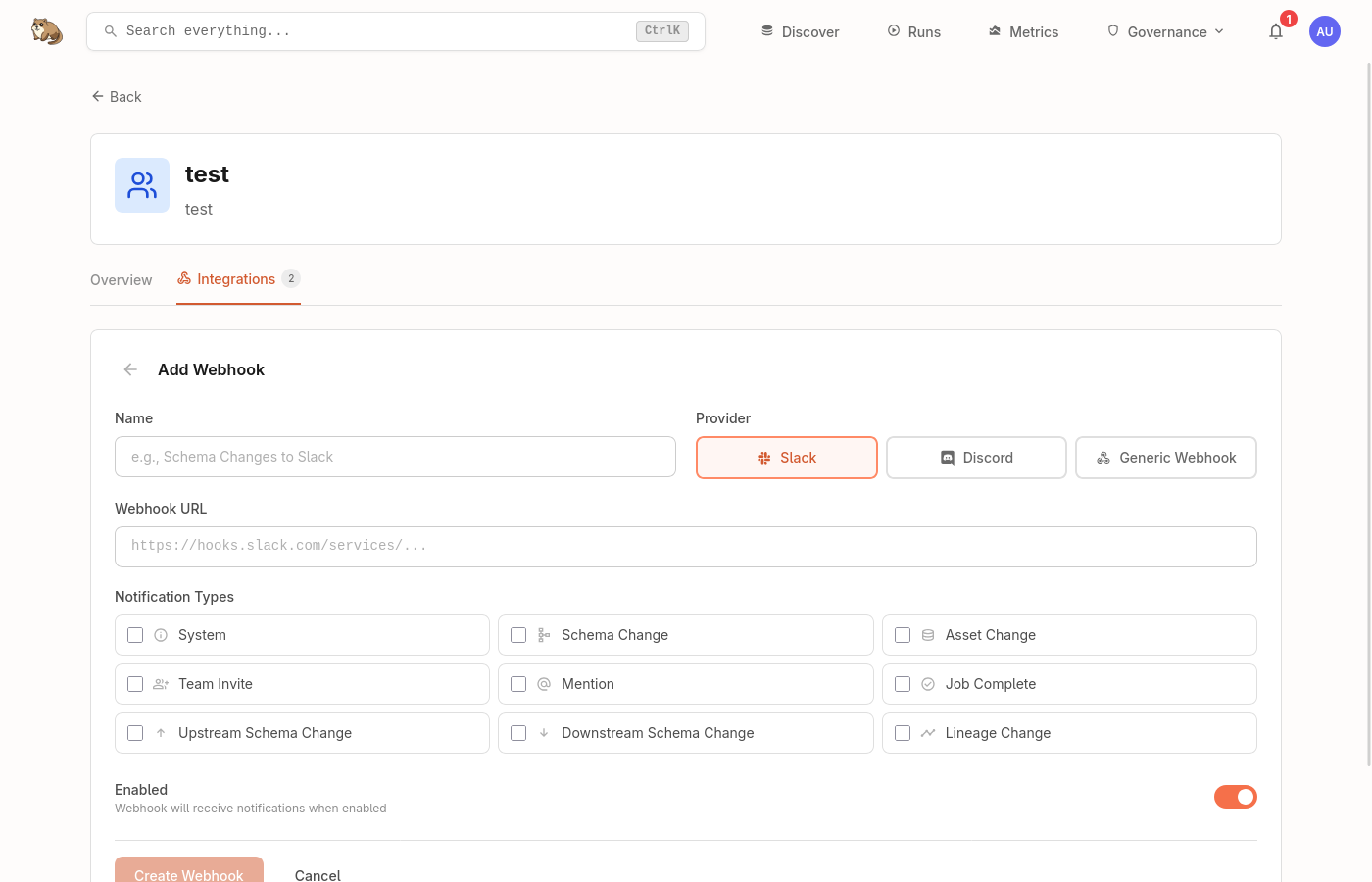
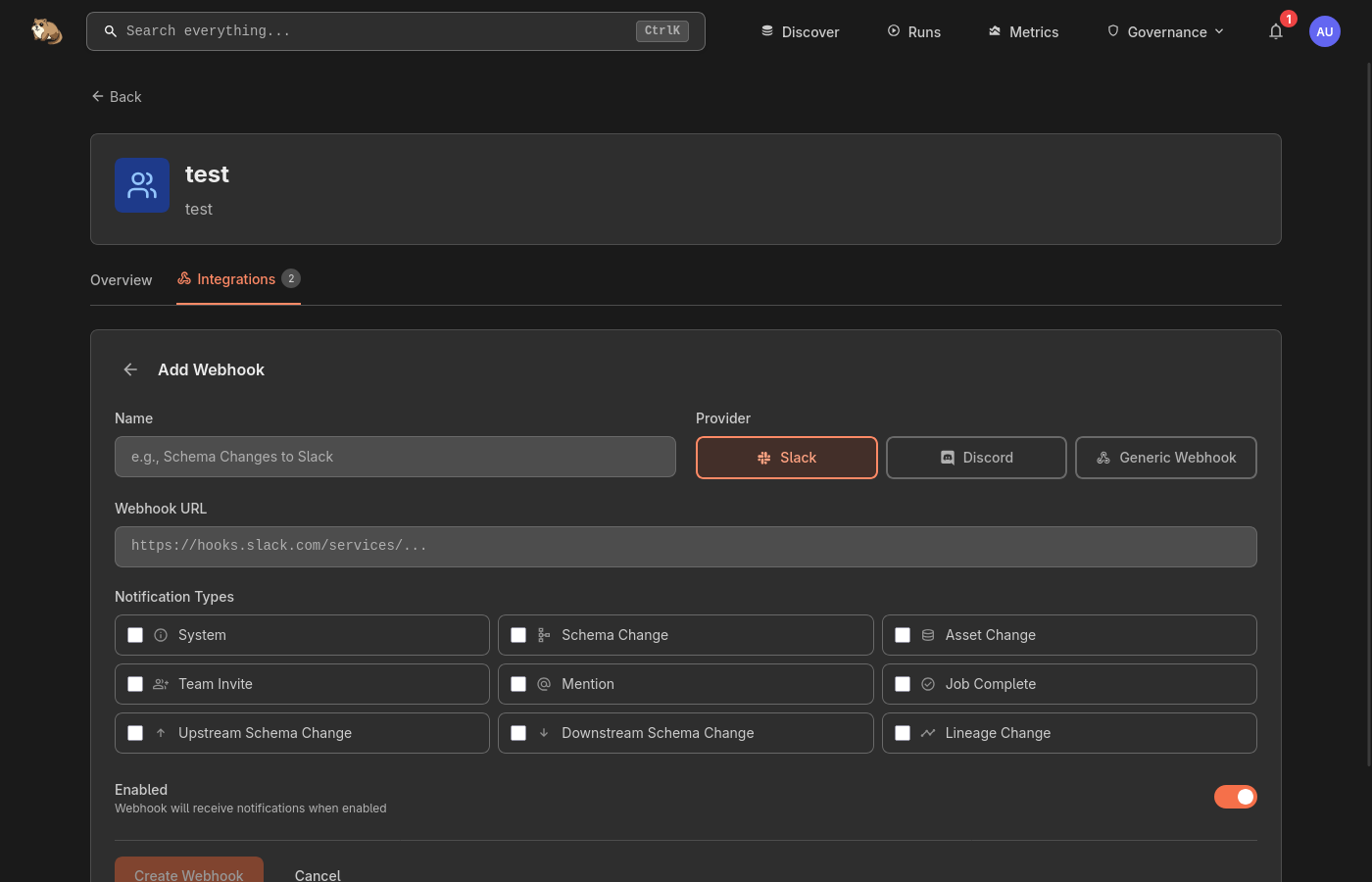
Click Add Webhook and fill in the details:
- Name: a descriptive label (e.g. "Schema alerts to #data-eng")
- Provider: choose Slack, Discord, or Generic
- Webhook URL: the incoming webhook URL from your provider
- Notification Types: select which types to forward
Test the Webhook
Click Send Test to verify the webhook is configured correctly. A sample notification will be delivered to your endpoint.
Provider Details
Slack
Create an incoming webhook in your Slack workspace:
- Go to Slack Apps and create or select an app
- Enable Incoming Webhooks and add a new webhook to your channel
- Copy the webhook URL (starts with
https://hooks.slack.com/)
Messages are formatted with rich blocks showing the notification type, affected asset, and a link back to Marmot.
Discord
Create a webhook in your Discord server:
- Open Server Settings > Integrations > Webhooks
- Click New Webhook and select the target channel
- Copy the webhook URL (starts with
https://discord.com/api/webhooks/)
Notifications are delivered as embedded messages with colour-coded types.
Generic HTTP
For custom integrations, the generic provider sends a JSON POST to any HTTPS endpoint:
{
  "type": "schema_change",
  "title": "Schema changed on users_table",
  "message": "Column 'email' type changed from VARCHAR to TEXT",
  "asset_mrn": "postgres://prod/public/users_table",
  "team_id": "d4e5f6...",
  "timestamp": "2025-01-23T10:30:00Z"
}